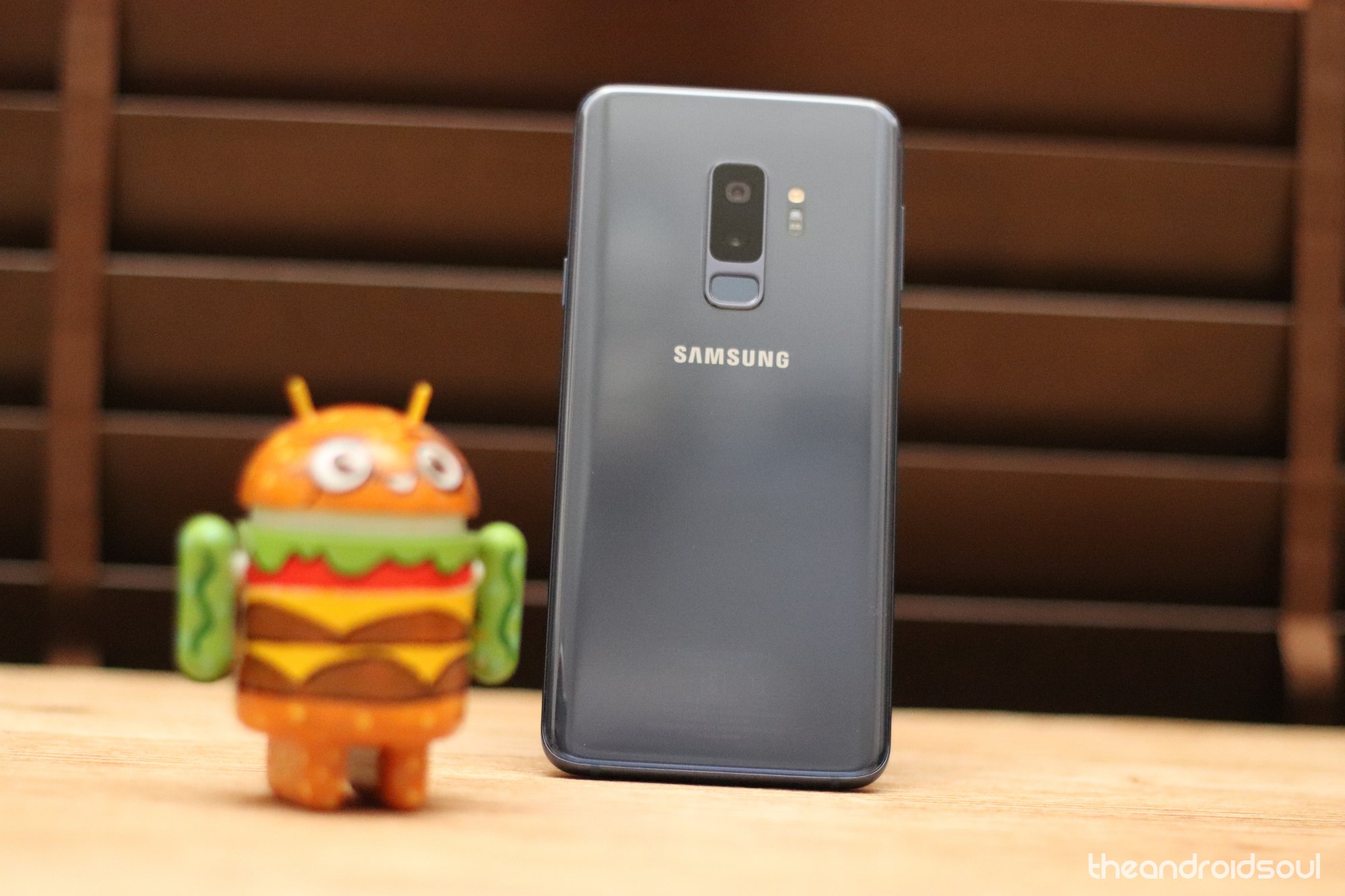
Samsung’s new One UI skin over Android 9 Pie brings along a lot of changes and the most notable change is the complete redesign of the UI the UI itself.
Samsung has revamped the aesthetic of the user interface by making it easier to reach the interactable parts of an application or page with one hand — mostly by using big fonts to occupy the top half of the screen without a fuss. It looks good, too.
The redesign also brought along a change in how the time is displayed at the left of the status bar, rather than the right side which was the default position for the clock prior to the One UI update.
Fortunately, if you don’t like the new position, you could simply change the location of the clock back to the right. Below is the process on how to do so.
NOTE: The process involves the use of ADB which means you would have to use a PC/Mac to perform certain actions.
How to move the clock back to the right on One UI

Downloads
Step-by-step guide to change clock position
Step 1: Install SystemUI Tuner
- Download and install the SystemUI Tuner application via the Google Play Store. (Link is given above)
Step 2: Download ADB
- Download the ADB files on your PC via the link given above.
- Place the ADB files in a location where you could easily access the files.

- Simply extract the ADB files to the same location or extract the files to the Desktop for more convenience.
Step 3: Enable USB debugging on your Samsung device
- If you already have unlocked the Developer options on your device you may skip this process:

- Go to Settings > About phone > Software information.
- Tap on Build number 7 times consecutively.
- Developer options would now be unlocked.
- Open up the Settings menu on your device scroll to the bottom and tap on Developer options.

- Under the Debugging category, toggle on USB debugging.
- Connect your phone to the PC via the USB cable.
Step 4: Launch Command prompt
- It’s a must that you launch the command prompt in the correct directory to successfully begin the process.
- To do this, simply open the Platform-tools folder you extracted in Step 2.

- Double click on the address bar and copy the directory.
- Press Win + R on your PC and type in cmd and then hit enter.
- Now enter the following command in the command prompt window.
- cd “paste the Platform-tools directory here using ctrl + v” hit enter when done.
- You have to enter this command next:
- adb shell pm grant com.zacharee1.systemuituner android.permission.WRITE_SECURE_SETTINGS
- To do this, simply open the Platform-tools folder you extracted in Step 2.
Step 5: Using the SystemUI Tuner app

- Tap on the Tick mark icon within the SystemUI Tuner application on your smartphone after the previous command above is successfully executed.
- You would have to relaunch the SystemUI Tuner application on your device.
- On the homepage of the application, tap on TO THE TWEAKS.

- Then tap on TouchWiz.
- Expand the Miscellaneous category and now you would be able to see the Clock Position option.
- Simply tap on Clock Position and select Right and watch your position change immediately.
You could also change the clock position to the center of the status bar and you could change the navigation bar color as well using the SystemUI Tuner application.
Related:
- Samsung One UI gestures: How to use them like a Pro
- Common Samsung One UI gestures problems and their possible solutions
- Why Samsung’s One UI is half baked and not a worthy update
- Samsung One UI: What is it, new features, and more
The post How to move the clock back to the right on Samsung devices running One UI appeared first on The Android Soul.
from The Android Soul https://ift.tt/2CbnVq9
via IFTTT


 Posts
Posts


0 comments:
Post a Comment
Your Comment is valuable to us.